Setup
Prerequisites
- An IDE such as VS Code or Cursor
- Python 3.11+
- Node.js and npm
- uv (Python package manager)
1. Clone the repo
2. Install dependencies
3. Create your environment file
4. Create a Free Redis Cloud Account
Go to redis.io/try-free and sign up or log in.
5. Create a Redis Database
-
Click New database and select Try 30 MB for Free.
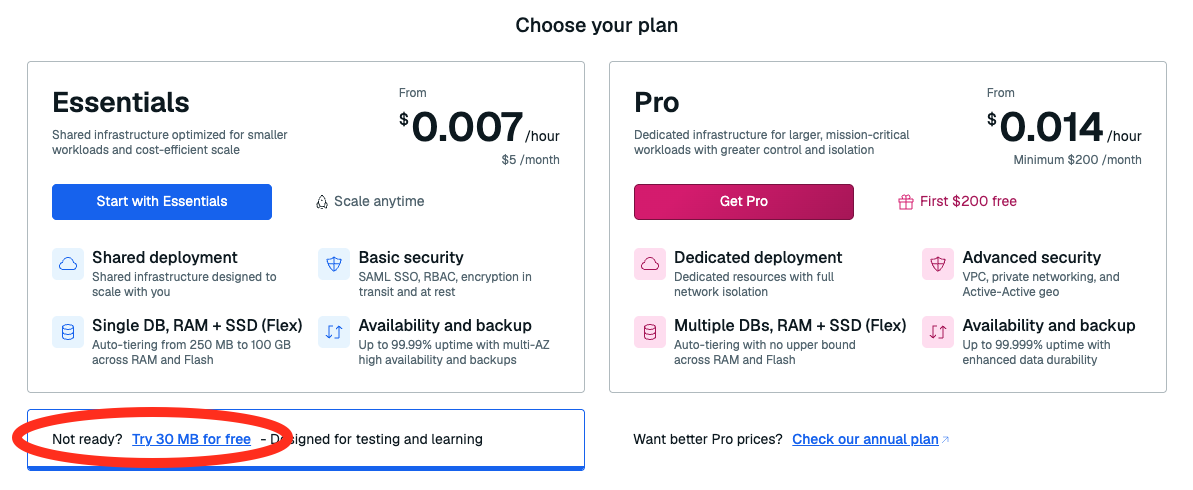
-
Name it (e.g.
iris-workshop). - Leave everything else as default.
- Click Create.
6. Get your Redis credentials
After your database is created, click Connect.

Then open Redis SDK clients → select Python (redis-py) → click the view icon to reveal your credentials.
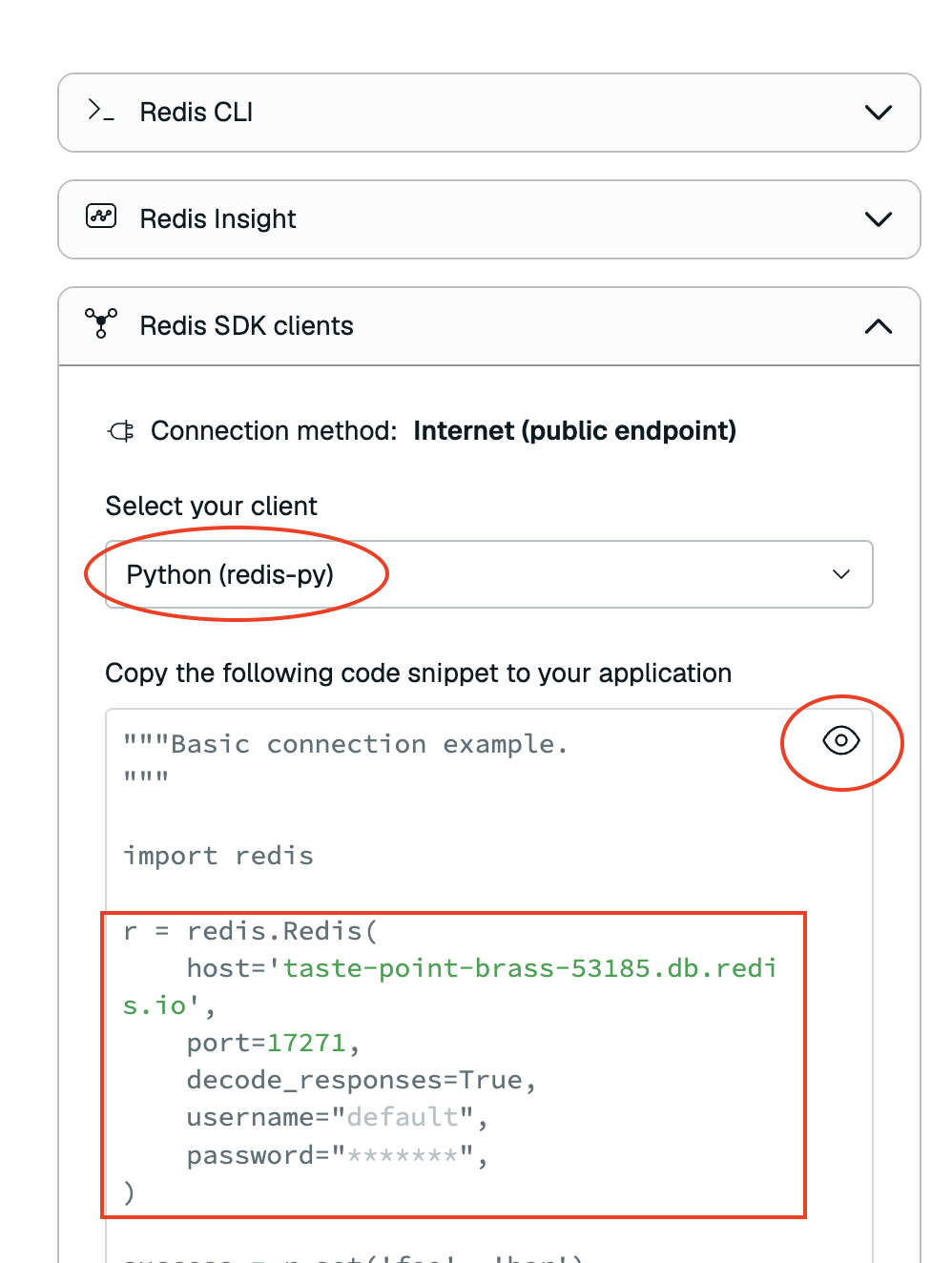
Open your .env file and set your Redis credentials:
7. Set your OpenAI key
Check Announcements to get the API key (you'll need the session code from your instructor), then set it on line 14 of your .env file:
8. Set your domain
On line 6 of your .env file, make sure the domain is set to:
9. Start the app
10. Verify
Open localhost:3040 successfully.